

How to Add Page Numbers to a PDF After Merging Files
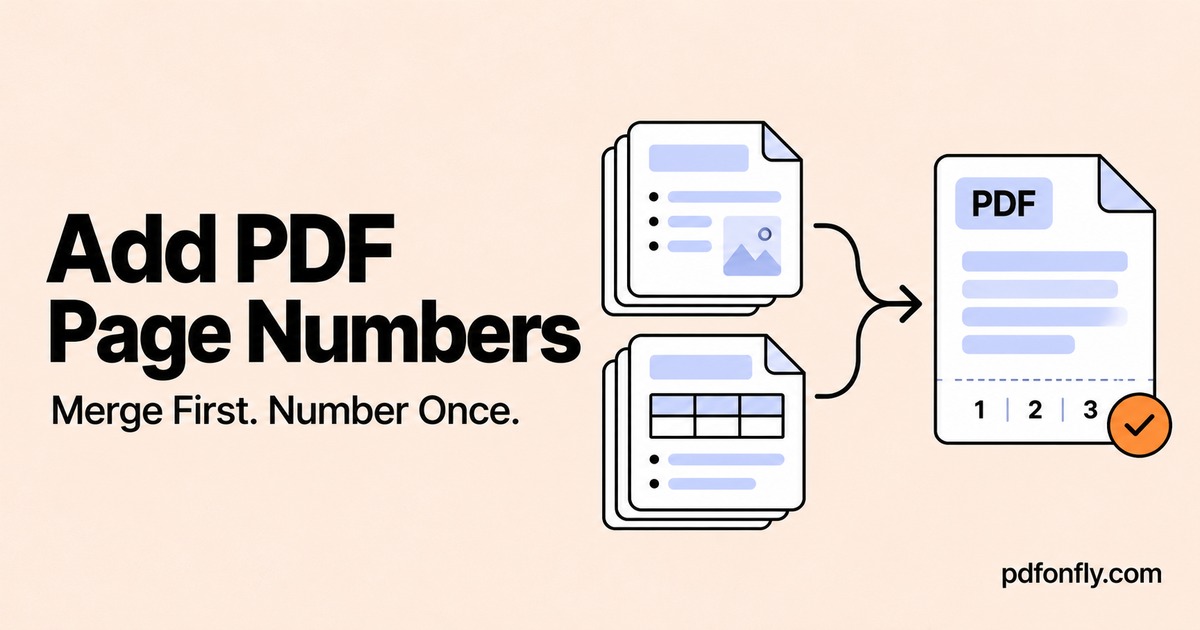
You combine a five-page report with a three-page appendix. Both files already have their own page numbers, so the merged document appears to start again halfway through.
Adding one continuous sequence can make the complete pack easier to discuss: “look at page 7” should point to one page. The useful order is to merge, arrange, and remove unwanted pages first, then number the final document.
Finish the document before numbering it
Use Merge PDF to combine the source files. Check the result and use Organize PDF if pages need moving or removing.
Count the finished pages. In the example above, five report pages plus three appendix pages produce eight pages. If you later insert a cover, the total becomes nine, so an earlier “of 8” footer would no longer describe the whole file.
Our page organization guide includes a worked example for checking the sequence.
Add continuous page numbers
- Open Number Pages and upload the finished PDF.
- Select a position, such as bottom center or bottom right.
- Choose the format: plain numbers, “Page 1,” “1 of N,” or “Page 1 of N.”
- Set Start at. Use 1 for a new document, or a different positive number when continuing a larger sequence.
- Choose a readable font size and inspect the preview.
- Select Add Page Numbers and download the result.
The preview helps you choose the placement, but inspect more than the first page afterward. A footer that fits a cover might overlap a chart or signature block elsewhere.
Pick a format that helps your reader
| Format | Useful when | Check |
|---|---|---|
| 1, 2, 3 | You want a compact footer | The number is easy to find |
| Page 1, Page 2 | The document contains other small numbers nearby | The label does not crowd the margin |
| 1 of N | You want readers to see the total length | The final count matches the actual file |
| Page 1 of N | You need an explicit page label and total | There is enough space on every page |
For an ordinary merged pack, a small bottom-center label is often a useful starting point. For pages with content near the bottom, choose an empty area instead. Consistency helps more than decorative styling.
What about numbers already printed on the pages?
The numbering tool adds new content. It does not remove numbers that are already part of the source document.
If you control the original files, remove or revise their footers there before converting and merging again. If the originals cannot be changed, keep the new sequence visually distinct and explain it when needed—for example, “references use the bottom-right page number.” Avoid putting a new number directly over an old one.
Adding a visible sequence is also different from changing a PDF viewer's page labels. The viewer's count, a printed footer, and a report's chapter numbering can differ. Check which one your recipient expects to use.
Verify the beginning, a boundary, and the end
Open the downloaded PDF and inspect its first page, the point where the appendix begins, and its last page. For an eight-page document starting at 1, the plain-number sequence should end at 8.
Look at at least one landscape page if the file has mixed orientations. Check that the footer remains readable and does not overlap content. If you change the document afterward, return to the unnumbered version and number the completed file again to avoid duplicate labels.
Common questions
Can I leave the cover unnumbered?
The current tool provides a starting number, not a separate “skip cover” control. For a clean result, number the body PDF first and merge the unnumbered cover in front afterward. If you use a total-count format, remember that the total then describes the numbered body, not the cover plus body.
Can I add custom prefixes or chapter numbers?
Use the formats available in the tool. If you need a specialized sequence such as chapter-prefixed numbering, set that up in your source document or a PDF editor that supports it.
Should I number before or after compressing?
Complete the content and numbering first. If you then use Compress PDF, inspect the final compressed copy, including the smallest footer text.