

How to Merge PDF Files Without Losing Quality (Free)
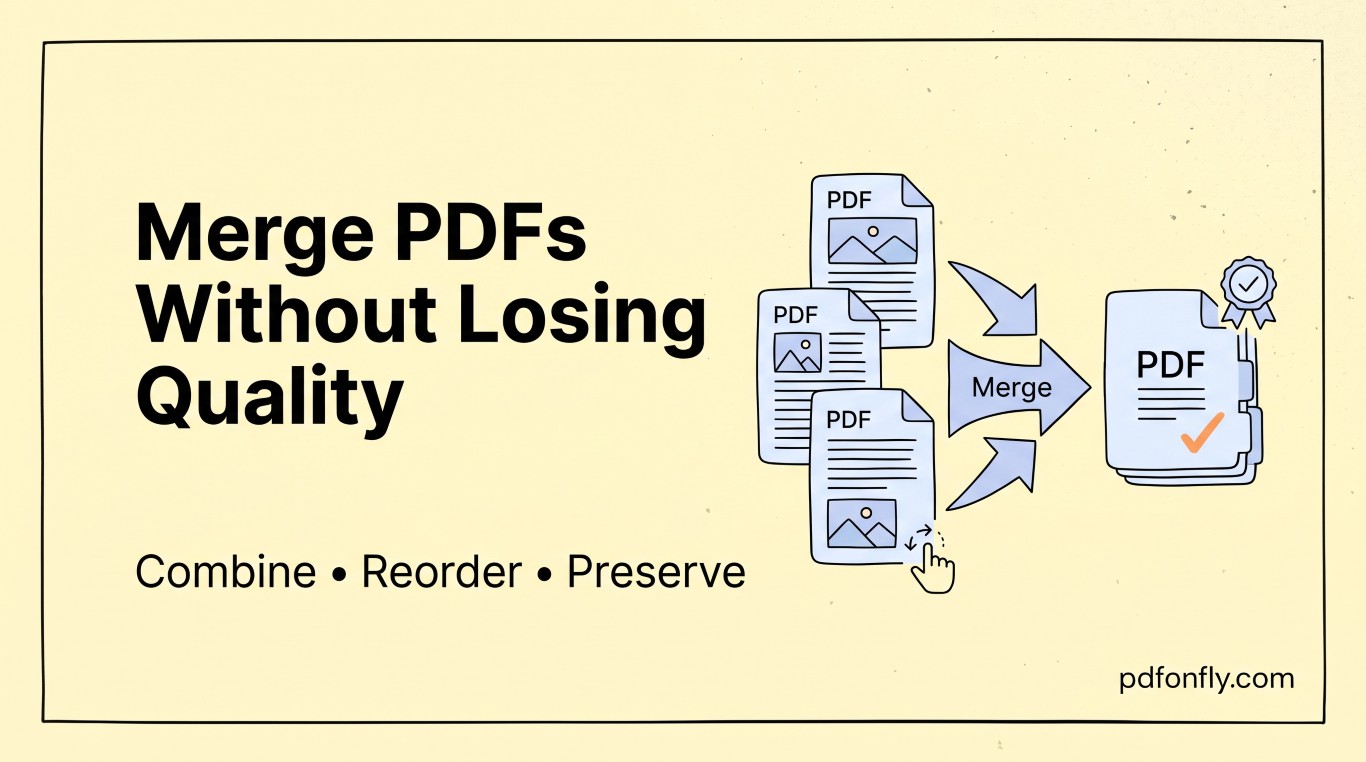
Somewhere in the last few years, "just combine these into one PDF" became one of the most common small requests in any office — three scanned receipts for an expense report, a cover letter stapled to a resume, a dozen signed contract pages that need to travel as a single file. It should be a thirty-second job. It usually is, until the merged file comes out blurry, missing a page, or in the wrong order, and now it's a fifteen-minute job with a deadline attached.
Here's what actually causes that, and how to avoid it.
Why merged PDFs sometimes lose quality
Merging itself doesn't compress or re-encode anything — a proper merge tool stitches the underlying pages together as-is. Quality loss almost always comes from one of three places instead:
The source files were already low quality. If you're combining a scanned document that was saved as a low-resolution JPEG before it became a PDF, merging won't fix that — the blur was baked in before you ever opened a merge tool.
The tool "optimizes" as it merges. Some free tools quietly recompress images to keep file sizes down, which is fine for a text-heavy contract and not fine for a scanned photo ID or a diagram with fine detail. If a merge tool's output looks softer than the originals, this is usually why.
Pages get reordered or dropped during upload. This isn't a quality issue in the technical sense, but it feels like one — nobody notices a missing page until the recipient does. Any decent merge tool should let you see and reorder every page as a thumbnail before you commit.
Step-by-step: merging without any of that happening
- Start with the best version of each source file you have, not a photo of a printed copy if the original PDF or scan is available. This matters more than anything else on this list.
- Upload all the files at once rather than merging two, then adding a third — most tools handle this fine, but doing it in one pass means you only have to check page order once.
- Check the thumbnail preview before merging. This is the step people skip and then regret. A few seconds of scrolling through thumbnails catches upside-down scans, duplicate pages, and anything in the wrong order.
- Reorder by dragging, not by re-uploading. If page order is wrong, drag the thumbnails into place rather than starting over — re-uploading a scanned file repeatedly is one of the more common ways quality actually does degrade, especially if your tool re-processes images on every upload.
- Download and open the result before you send it. Takes ten seconds, catches the other ninety percent of problems.
PDFonFly's merge tool does the thumbnail-preview-and-reorder step by default and doesn't recompress images during the merge, so what goes in is what comes out — no account or email address required to use it.
If a page still looks blurry after merging
Open that page's source file on its own, at full size. If it's blurry there too, the problem predates the merge and no tool can fix it after the fact — you'll need to go back to whoever scanned it, or rescan at a higher resolution if you have the original document in hand. If the source file looks sharp but the merged version doesn't, that's a sign the tool you used is recompressing images, and it's worth trying a different one for that particular file.
One more thing worth knowing: file size after merging
Combining several files naturally adds their sizes together, and if you're about to email the result, that can push you over an attachment limit fast. Rather than accepting a quality hit from an aggressive merge tool, merge first at full quality, then run the finished file through a dedicated PDF compressor — you get to control how much size you're trading for quality, instead of a merge tool making that call for you without asking.
Frequently asked questions
Can I merge PDFs and images (like JPGs) into one file? Yes, most merge tools — including PDFonFly's — accept a mix of PDF and image files and will convert the images into pages automatically as part of the merge.
Is there a limit to how many files I can merge for free? It varies by tool. PDFonFly's free tier allows a generous daily number of merges; if you're combining a genuinely large batch (50+ files), check the specific tool's limit before you start.
Will merging password-protected PDFs work? Not directly — you'll typically need to remove the password first (with the file's owner's permission) using an unlock tool, then merge, then re-protect the combined file if needed.
Does merging PDFs reduce their quality by itself? No — a proper merge is a lossless operation that combines pages as they are. Any quality loss you see comes from the source files themselves or from a tool that recompresses images during the process, not from merging as a concept.