

How to Password-Protect a PDF Before Sharing It
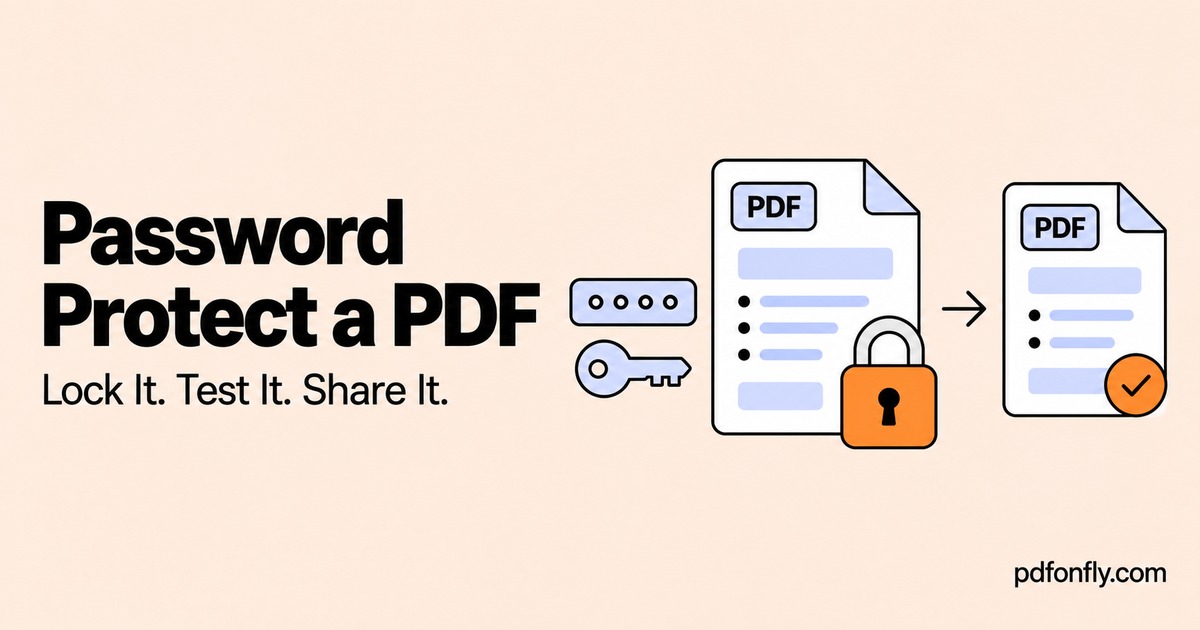
You have finished a document and want the recipient to enter a password before reading it. Adding that password is only part of the job: you also need to test the correct file and make sure the recipient can get the password without exposing it alongside the attachment.
Start with the final PDF. Finish any merging, page changes, or compression before protecting the copy you intend to send.
Understand what protection you need
PDF security can refer to different controls. An opening password is intended to prevent someone from opening the file without the password. Permissions restrictions concern actions such as editing or printing and are a different feature.
Do not treat a disabled editing command as proof that the document cannot be read. Adobe's PDF security documentation distinguishes these password types.
For this walkthrough, the goal is to require a password when opening the finished file. Verify that behavior in the downloaded copy.
Choose a password you can share accurately
Use a unique password, ideally generated and saved in your password manager. Avoid a predictable filename, birthday, or the recipient's name. Do not reuse your email or account password as a document password.
Think about how the recipient will type it. A long password can be appropriate, but make sure the delivery method preserves its exact characters. If they copy and paste it, an extra space can cause a failed attempt.
Keep a record of the password and an unprotected original in a suitable private location. Do not rely on being able to recover a lost password later.
Add the password
- Open Protect PDF.
- Choose the final PDF from your device and wait for the upload.
- Enter the password in Choose PDF password.
- Enter it again in Repeat PDF password.
- Select Lock PDF.
- Download the protected copy with a filename that distinguishes it from the original.
This is an online workflow. If the document must remain on your device under your organization's rules, use an approved local application instead. Our online conversion privacy guide explains what to check before uploading.
Test the actual attachment
Close the PDF after downloading it. Reopen that downloaded file in a PDF viewer, preferably in a fresh viewing session. It should ask for the password before showing the pages.
Try an incorrect password to confirm that it does not open, then try the correct one. Once it opens, check the first and last pages and any important content. A viewer may remember a password during a session, which is why reopening in a fresh session is useful.
Before sending, check the attachment's filename and location. It is easy to protect a document successfully and then accidentally attach the unprotected original.
Send the password separately
Sending a password in the same email as the file gives someone who can read that email both items. Use a separate agreed channel, such as a direct conversation or a separate messaging service the recipient already uses.
Confirm the recipient and the destination before sharing. Avoid putting the password in the filename, the email subject, or a public download description.
Password protection controls access to the file before it is opened. Once the recipient can read it, they can still share what they see. Choose an access-controlled document-sharing service instead when you need features such as revoking access or managing recipients over time.
Troubleshooting
| Problem | Check |
|---|---|
| The file opens without asking | That you opened the protected copy in a fresh viewer session |
| The correct password is rejected | Capital letters, keyboard layout, and copied spaces |
| The recipient cannot find the file | The attachment name and the download location |
| You changed the document afterward | Protect the new final version and test it again |
Common questions
Does a password permanently remove confidential text?
No. It controls access to the file; it does not redact content. Remove material that the recipient should never receive before creating the final distribution copy.
Can I remove the password later?
If you own the document and know its password, use Unlock PDF to create an unprotected copy when appropriate. Keep track of which version you distribute.
Can I guarantee that nobody will share the document?
No. A password is not a substitute for choosing appropriate recipients and a suitable sharing method. Test the file, send it to the intended person, and share the password separately.