

How to Convert PowerPoint to PDF: Slides, Notes, and Handouts
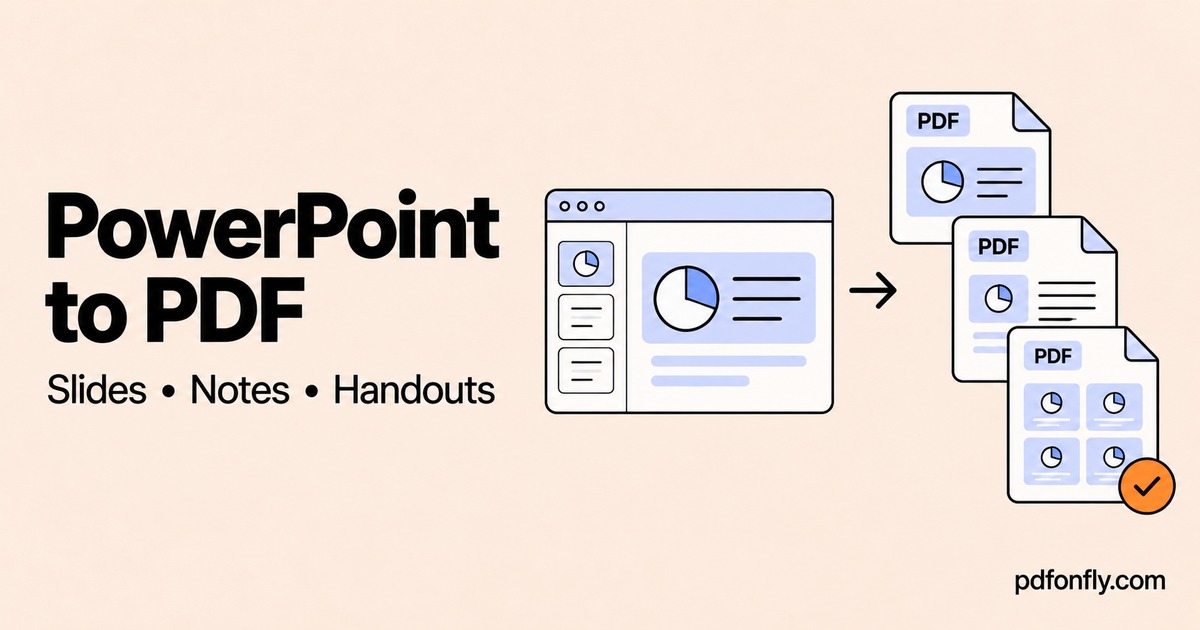
Before converting a presentation to PDF, decide what the recipient needs. A client reviewing your proposal may want one large slide per page. A presenter may need speaker notes. A class may benefit from a compact handout with room to write.
Those are three different documents. Choosing the output first saves you from sending the slides when the explanation was in your notes.
Choose a PDF layout
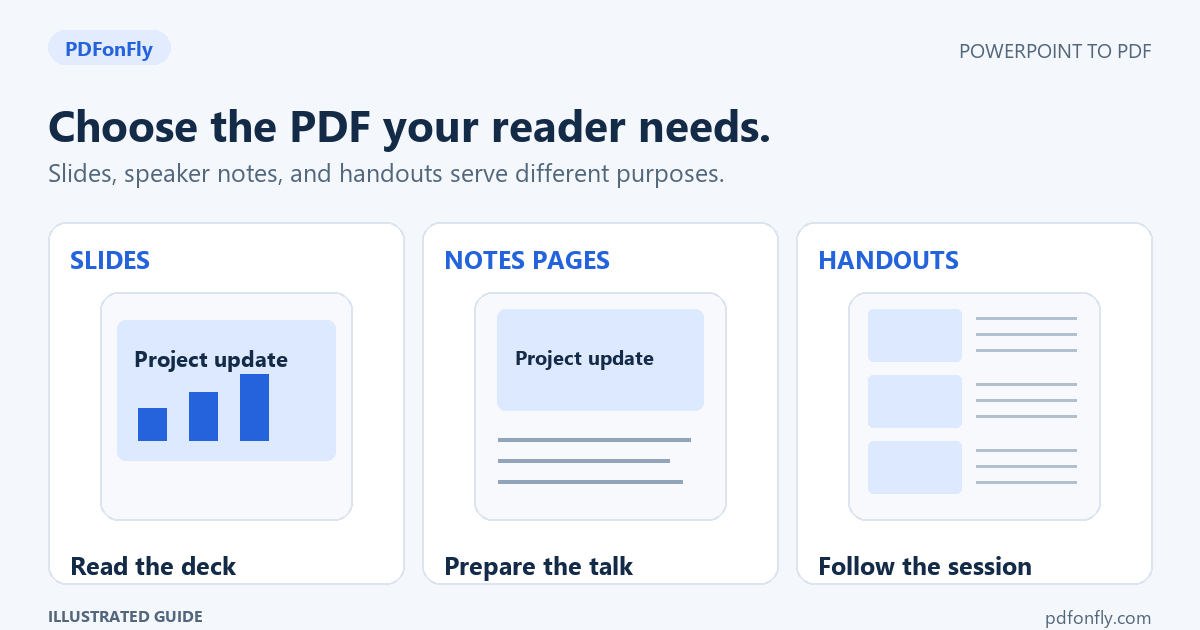
| The reader's task | A useful starting layout | Where to create it |
|---|---|---|
| Read a deck on screen | One slide per PDF page | PowerPoint to PDF or PowerPoint export |
| Rehearse or deliver a talk | Notes pages | PowerPoint's notes printing controls |
| Follow a lesson or workshop | Several slides per page | PowerPoint's handout printing controls |
The image above illustrates the layouts; it is not a screenshot of the converter. Notes and handout settings belong to PowerPoint's native export or print workflow.
Convert PPT or PPTX to PDF online
If you have a presentation file and need a PDF copy without installing PowerPoint:
- Open PDFonFly's PowerPoint-to-PDF converter.
- Select Choose file and select your
.pptor.pptxfile. - Wait for the upload to complete.
- Select Finish and download the resulting PDF.
- Open it and inspect the pages before sharing it.
Check the current file limit and usage allowance on the tool page. This is an online upload workflow; use a local export when the file must stay on your computer.
Keep the PPTX as well. It remains the file you edit or use to deliver the presentation.
Export slides directly from PowerPoint
In PowerPoint for Windows, use File > Export > Create PDF/XPS. Before publishing, open Options to check the slide range and the content to include. Export controls can also determine whether hidden slides are included.
On a Mac, PDF is available through File > Export or File > Save As. PowerPoint for the web offers File > Export > Download as PDF. The available controls differ across versions; do not assume that a setting shown in Windows also exists on a Mac.
Microsoft describes these routes and their differences in its PowerPoint PDF export instructions.
Need speaker notes? Choose notes pages
A presentation can contain useful explanations beneath each slide. A normal slide-page PDF may leave the reader without that context.
In PowerPoint desktop, open File > Print and look for the layout controls. Choose Notes Pages if you want a slide with its associated notes. Use a PDF printer or the system's PDF-saving option if one is available. Review the preview and open the saved PDF to confirm that the notes are actually present.
Read the notes before exporting. They may contain rehearsal prompts or internal remarks that do not belong in the audience's copy. Work from a duplicate if you need to remove them for distribution.
Need several slides on a page? Create a handout
For workshop material, choose a handout layout from PowerPoint's print controls. Try a small page range first rather than exporting the entire deck immediately.
The right number of slides per page depends on the slides. A few large diagrams can work well together. Dense charts or screenshots may become unreadable when reduced.
Check the preview at the size someone will actually print. Leave enough room for the reader's notes when that is part of the purpose. Microsoft covers the available layouts in Print your handouts, notes, or slides.
What happens to animations, video, and transitions?
Treat the PDF as a static reading copy. Do not rely on a slideshow's animations, transitions, or embedded media to explain a point in that copy.
For example, a slide might reveal three overlapping labels one at a time during a talk. A single static page may make them difficult to understand. Create a separate sharing version with all three labels placed clearly, or use one slide per stage of the explanation.
For a video demonstration, add a descriptive link to a destination the recipient can access. Test that link in the PDF. Keep the original deck or a recording available when movement is essential to the explanation.
Check these details after conversion
Page count and slide selection
Compare the PDF's pages with the content you intended to send. Inspect whether any appendix or hidden material is present. Hiding a slide affects the slideshow, but the slide still exists in the presentation file. Microsoft explains hidden slides.
Fonts and chart labels
Read the smallest labels at normal size. Check crowded text boxes, symbols, and charts with long legends. If a font changes the layout, make a simpler sharing copy or export from the computer where the intended fonts are available.
Links and navigation
Click the links that matter. A PDF can look correct while a link fails or points somewhere the reader cannot access. For a long deck, clear section-divider pages also help readers find the relevant part.
File size
Use the original high-resolution images when preparing the slides, then inspect the PDF's sharpness. If the finished file exceeds an upload limit, try Compress PDF and compare the smaller result. Small text inside screenshots is often the first detail worth checking.
Common questions
Is PPT to PDF different from PPTX to PDF?
PPT and PPTX are different PowerPoint file formats. The converter accepts both. In either case, check that the exported pages include the intended content.
Can I edit the slides after conversion?
Make revisions in the original presentation and export again. That keeps your editable version and distribution copy consistent.
Should I send the PDF or the presentation?
Send the PDF for reading or printing. Send the presentation when the recipient needs to edit it or deliver the slideshow. You can provide both with filenames that make their purpose clear.
Can I include the deck in a larger report?
Yes. Convert the documents separately, check each one, then merge the PDFs. Our Office-to-PDF guide covers combining Word, Excel, and presentation material into a readable pack.