

How to Save AI Text as a PDF Without Losing Markdown Formatting
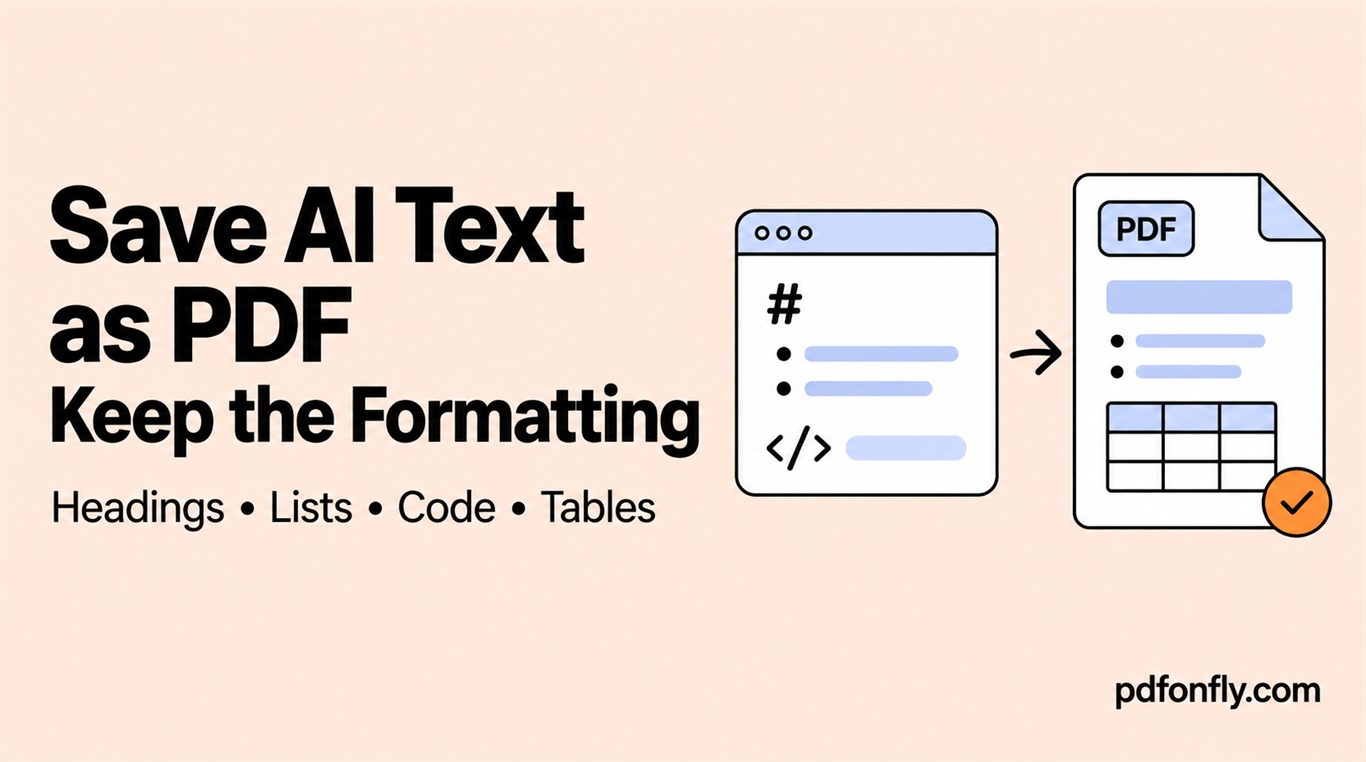
AI assistants often return Markdown: # for headings, asterisks for emphasis, numbered lists, fenced code blocks, and pipe-delimited tables. Pasting that raw text into a rich-text editor does not always turn the markers into visual formatting.
Decide whether you need the Markdown source or the rendered document
If readers need to see the literal Markdown syntax, paste it as preformatted text. If they need a polished report, render or reapply the structure before creating the PDF.
For a short answer, the fastest workflow is to paste into the text-to-PDF editor, remove conversational filler, apply heading styles, and inspect lists and links. For a long technical document, convert Markdown to HTML first or use an editor that understands Markdown.
Preserve the important structures
Headings
Use real heading styles rather than simply making a line bold. This creates a consistent hierarchy and clearer spacing.
Lists
Check nested bullets and numbered steps. Pasting can flatten indentation or restart numbering unexpectedly.
Code
Use a monospaced style and preserve line breaks. Long code lines need wrapping or a landscape page; otherwise they can be clipped.
Tables
Wide Markdown tables are the most common layout failure. Reduce columns, shorten labels, switch to landscape, or turn each row into a labeled block for narrow pages.
Links and citations
Verify that visible link text remains meaningful and that the PDF output keeps the intended URL. Remove AI-generated citations that you have not checked against the original source.
Multilingual AI output
When the response contains Arabic or Urdu, set those paragraphs to RTL. Keep Hindi and Bengali LTR, and choose fonts that support the required script. Test lines mixing native text with English product names, dates, or code.
The focused Arabic, Urdu, Hindi, and Bengali pages include script-specific test strings.
Final PDF checklist
Before sharing:
- Compare every heading and list with the source.
- Inspect tables and code at normal zoom.
- Click or copy important links.
- Search for one distinctive phrase.
- Review names, numbers, and citations for factual accuracy.
The PDF conversion step preserves presentation; it does not verify whether the AI-generated content is correct.