

Word to PDF: 5 Common Formatting Issues and How to Avoid Them
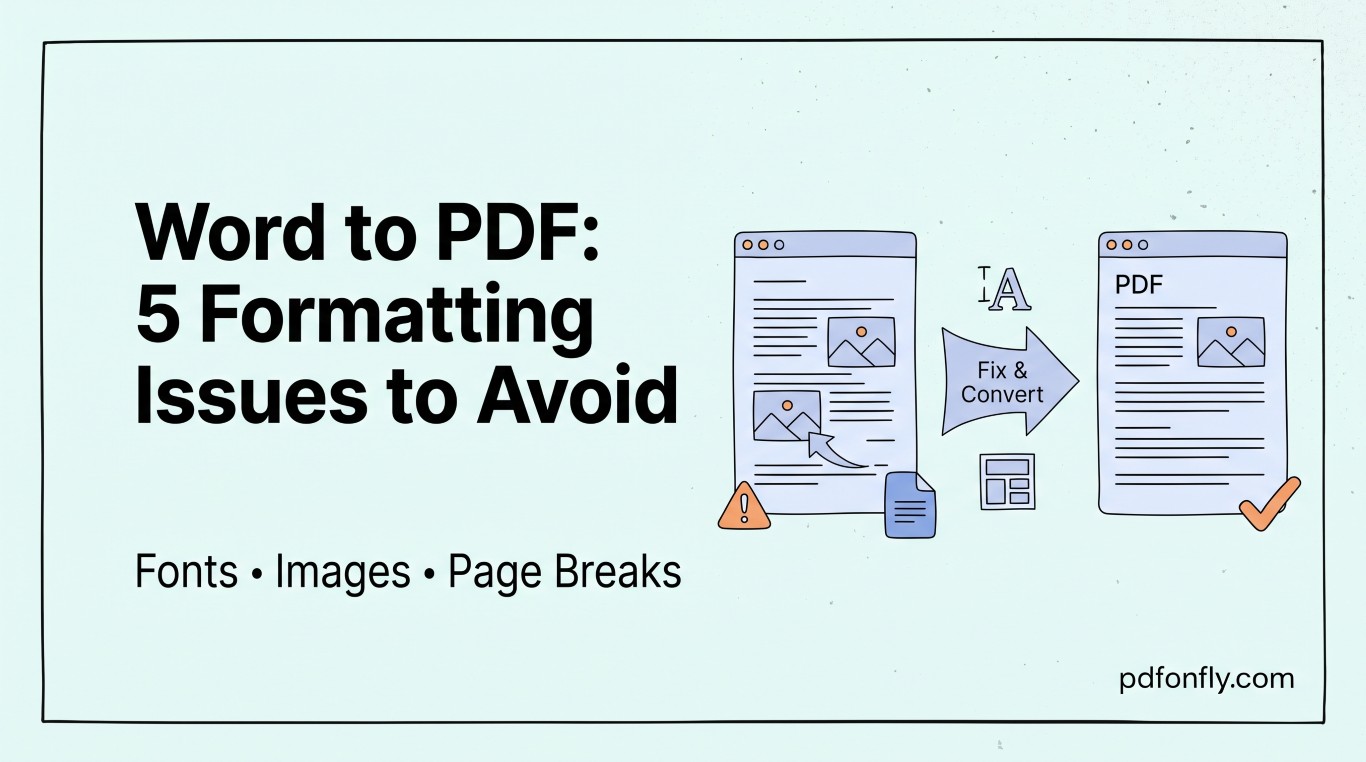
Converting a Word document to PDF should be simple, and most of the time it is. But when a document has been through several rounds of edits, copy-pasting from other files, or was built with unusual fonts or layouts, the conversion can introduce surprises. Here are the five most common ones, and how to avoid them.
1. Font substitution
If your document uses a font that isn't installed on the machine (or service) doing the conversion, it gets swapped for a fallback — which shifts line breaks and page counts. Stick to widely available fonts (Calibri, Arial, Times New Roman, Georgia) for documents you plan to convert, or embed the fonts directly in the Word file before converting.
2. Page breaks moving
Manual page breaks combined with "Keep with next" or "Widow/orphan control" paragraph settings can behave differently once page margins or fonts change slightly during conversion. If page breaks land in the wrong place, check these paragraph settings on the content immediately before the break.
3. Images anchored incorrectly
Images set to "In line with text" convert predictably. Images set to "Behind text" or "In front of text" with absolute positioning can drift, especially if the page size changes even slightly. For documents you'll be converting, prefer in-line image anchoring wherever the layout allows it.
4. Tables overflowing the page
Wide tables that just barely fit in Word's default view can overflow the printable area once converted, especially if the original document used non-standard margins. Reducing column widths or switching to landscape orientation for wide tables avoids this.
5. Headers/footers duplicating or misaligning
Section breaks in long documents sometimes carry inconsistent header/footer settings between sections. If a converted PDF shows headers that suddenly change or repeat oddly partway through, check for a section break at that page in the original Word file.
Converting cleanly
Once your document is set up with predictable fonts, in-line images, and consistent margins, conversion is usually a non-event. Word to PDF on PDFonFly converts directly in the browser and preserves formatting faithfully for documents that follow these practices — free, no signup, no software to install.