

How to Compress a PDF for Email in Under 2 Minutes
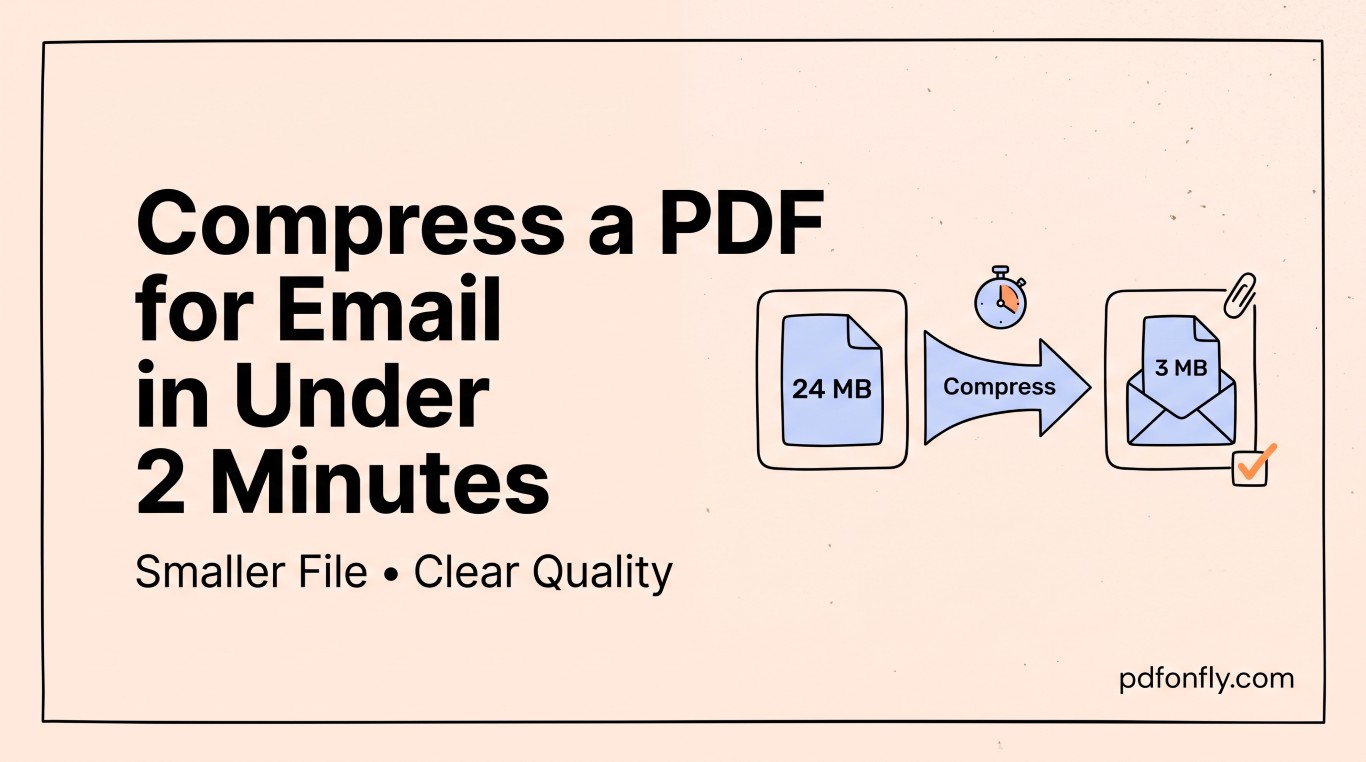
You attach the file, hit send, and a minute later it's back in your inbox with some version of "message too large." Almost every email provider caps attachments somewhere between 20 and 25MB, and a scanned document, an exported slide deck, or a report with a few high-resolution images crosses that line more easily than people expect. Here's the fast way to fix it, and why it happens in the first place.
Why PDFs get so big
Text alone almost never causes this — a hundred-page PDF of pure text is usually just a few hundred kilobytes. The size comes from images: scanned pages saved at a higher resolution than the screen or printer will ever use, photos embedded at their original camera resolution instead of resized for the document, or a presentation exported with every slide background baked in as a full-size image. Compressing a PDF, in practice, mostly means re-processing those embedded images down to a size that still looks sharp on a screen or in print, without carrying around resolution nobody will ever see.
The fast way
- Open a PDF compressor — PDFonFly's compress tool or a similar free option — and upload the file.
- Let it run. Most compression happens automatically with no settings to configure; a typical scanned document or slide export will lose somewhere between 50% and 90% of its size.
- Download and check it before sending. Open the compressed file and look specifically at any page with a photo or fine detail — text and simple graphics almost never show a difference, but a compressed photo occasionally does, and it takes five seconds to check.
- If it's still too big, the next step depends on what's in the file. A document that's mostly scanned photos has less room to shrink further without visible quality loss. At that point, splitting the file into two smaller PDFs and sending them separately (or as two links) is usually a better trade than compressing further.
What if the file is a scan, not a document?
Scanned documents are the trickiest case because the "text" is actually a photo of text, so there's no lightweight text layer to fall back on — the whole page is image data. If you scanned it yourself, scanning at 200–300 DPI in black-and-white (rather than color) for a text document cuts the file size dramatically before you even get to a compressor, because black-and-white scans compress far better than color ones. If you don't control the original scan, running it through a compressor is still worth doing — it just won't shrink quite as far as a native digital document will.
Compressing without losing quality — what "quality" actually means here
A good compressor doesn't touch your text at all; it re-encodes embedded images at a lower resolution and slightly higher compression, which is invisible for anything viewed on a screen or printed at normal size. Where it becomes visible is if someone plans to zoom in tight on a photo inside the PDF, or print a single image at poster size — for ordinary email-and-read use, a well-compressed file and the original are indistinguishable.
A quicker option if the file will only ever be viewed on screen
If nobody needs to print the document, you can often go further than a "safe" compression setting would normally allow, since screen resolution is much lower than print resolution. Some tools offer a "screen only" compression preset for exactly this reason — if yours doesn't, running the file through compression twice rarely helps and can start to visibly degrade image quality, so it's better to look for a tool with an adjustable quality setting instead.
Frequently asked questions
What's the actual attachment size limit for Gmail and Outlook? Gmail caps attachments at 25MB and Outlook.com around 20MB, though the effective limit is often a little lower once the file is encoded for email transport — as a rule of thumb, aim to get well under the stated limit rather than right up against it.
Will compressing a PDF ruin the text? No — compression targets the embedded images, not the text layer. Text stays sharp and selectable regardless of how much the file shrinks.
Is there a way to compress a PDF without uploading it anywhere? Yes, most operating systems and PDF readers have a built-in "reduce file size" export option, though free online compressors like PDFonFly's typically shrink files further with less manual fiddling.
My PDF is still too big after compressing — now what? Split it into two smaller files with a PDF splitter and send them separately, or share a link to the file instead of attaching it directly.