

How to Combine Multiple Photos into One PDF on Your Phone
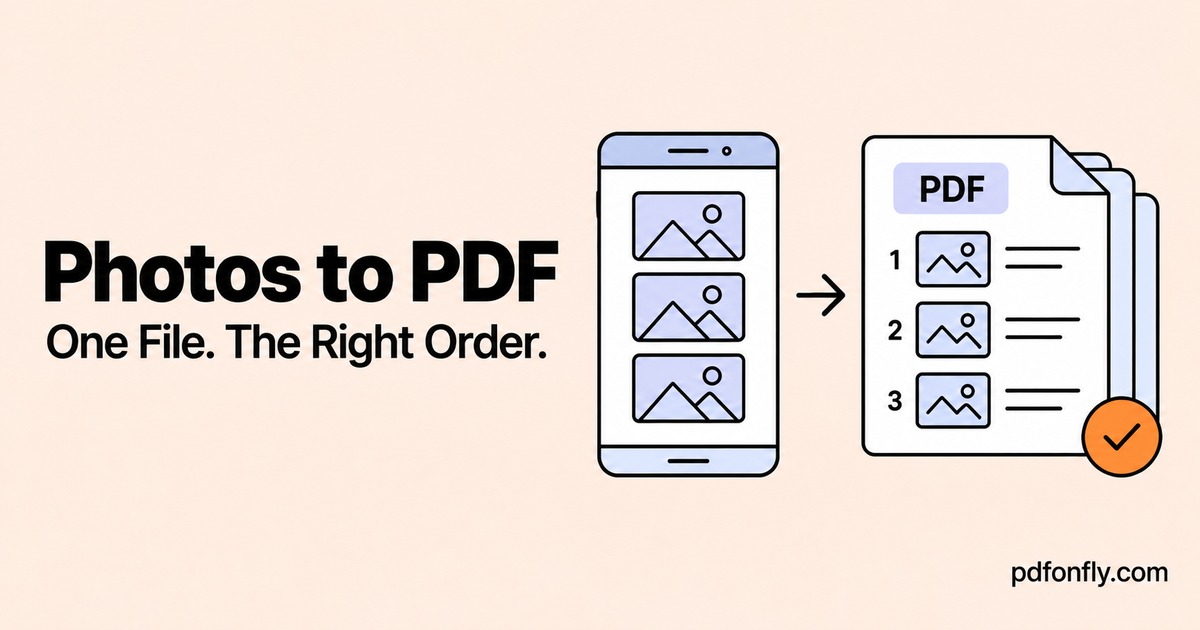
You photographed four pages, but the submission form accepts only one file. Combining the photos into a PDF solves the attachment problem. The next step is making sure the result is readable and the pages are in the right order.
You can do this in a phone browser with JPG to PDF, which also accepts supported image formats such as PNG. You do not need to put the photos into a Word document first.
Prepare the photos before uploading
Open each photo at full size. Check that the smallest writing is sharp, all four corners are present, and shadows do not cover important details. If a page is blurred, photograph it again. Converting it to PDF will not restore the missing detail.
For a photographed document, place the paper flat, hold the camera parallel to it, and use even light. Leave a little space around the edges so you do not cut off a signature or page number.
If your phone uses a format the uploader does not accept, export a copy in an accepted format such as JPG. Changing the filename extension alone does not change the image format.
Combine the images into a single PDF
- Open JPG to PDF in your phone browser.
- Select Choose JPG and choose the photos. Depending on your phone, the picker may offer Photos, Gallery, or Files.
- Wait for the uploads. Use Add more if you missed a page.
- Arrange the image cards in reading order. Do not rely on the order in which you tapped the photos.
- Leave Separate PDFs switched off when you want one combined file.
- Choose the page size, orientation, and margins that suit the images.
- Select Finish, download the PDF, and open the saved file.
The tool uploads images for conversion. Check the allowance and size limit on the page, and use an approved local method when your documents must stay on your device.
Choose a layout the recipient can read
| Your photos | A useful starting choice | What to check |
|---|---|---|
| Portrait document pages | Portrait A4 or Letter | All page edges and small text |
| Wide charts or landscape pages | Landscape | Labels near the right edge |
| A mixture of page shapes | Inspect the whole PDF | Whether any page became too small |
A standard paper size helps when someone will print the file. For screen reading, preserving a comfortable image size may matter more. Avoid stretching a photo to fill a page if that distorts the writing.
Check the file you will actually submit
Count the pages and compare the order with the originals. For a four-page form, confirm that the first page is the cover, the second follows it, and the signed final page is present. Look for accidental duplicates.
Zoom into dates, reference numbers, and handwriting. Then check the saved file's size against the destination's limit. If it is too large, try Compress PDF and inspect the smaller copy before uploading it. Keep the original version until the submission succeeds.
Give the final file a useful name, such as course-application-pages.pdf. A meaningful name is easier to identify in a phone's download folder than several files called document.
Fix common problems
The result contains several PDFs. Check whether Separate PDFs was enabled. Start again with a single combined output selected.
One photo is sideways. Correct its orientation before the final conversion, or use Rotate PDF afterward.
A page is blurry. Compare it with the source photo. If the original is also blurry, retake it. If only a compressed copy is blurry, return to the larger version and use less compression.
The download is difficult to find. Check your browser's download list and your phone's Files or Downloads location. Open the file there before selecting it in another website's upload form.
Questions people ask
Will the text in the photos become searchable?
Putting a photo into a PDF does not by itself turn the photographed writing into searchable text. That requires OCR. Our searchable PDF versus image PDF guide shows how to check the difference.
Can I combine JPG and PNG images?
The converter accepts both. Check the supported-format notice before uploading other types. For PNG files, you can also start with PNG to PDF.
Can I add pages from another PDF?
Create the photo PDF first, then use Merge PDF to combine it with the other document. Open the merged result and check the page order again.