

Arabic Letters Disconnected in a PDF: Causes and Fixes
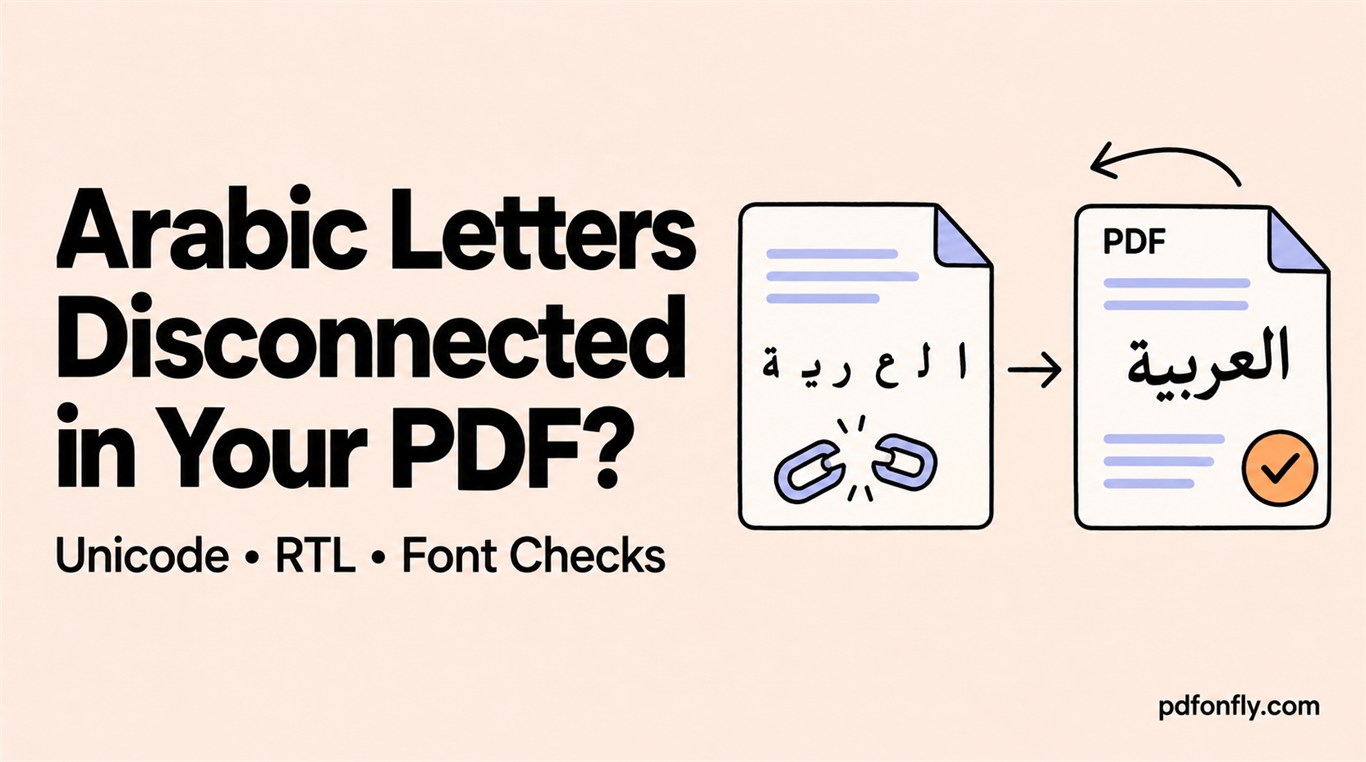
Arabic text can look correct in an editor and then appear as separate letters, reversed words, or misplaced punctuation in a PDF. These failures usually come from one of three layers: the source characters, paragraph direction, or font and shaping support.
Start with a diagnostic sentence
Before converting a long document, test one paragraph containing connected letters, punctuation, an Arabic number, a Western number, and an English name. For example:
هذا اختبار لاتصال الحروف واتجاه الفقرة. رقم الطلب 2026 واسم الخدمة PDFonFly.
Use the Arabic text-to-PDF page, load its sample, keep RTL selected, and create a PDF. Check four things:
- Letters join within words.
- The paragraph begins on the right.
- Numbers and punctuation stay beside the intended words.
- The Arabic sentence can be copied and searched in the PDF.
Cause 1: the source is not normal Unicode Arabic
Some older publishing systems store visual presentation forms or map Arabic-looking glyphs to private font positions. The text looks Arabic only while the original font is present. When another renderer sees it, the characters may become disconnected or unrelated symbols.
Paste a sentence into a plain Unicode-aware editor. If it changes immediately, export or convert the source to Unicode before making the PDF. A different PDF font cannot repair incorrect character data.
Cause 2: the paragraph direction is wrong
Arabic requires right-to-left paragraph direction. Alignment and direction are not the same: right-aligning an LTR paragraph can move the block to the right while punctuation and mixed English still behave incorrectly.
Apply RTL to Arabic paragraphs. Put a long English passage in its own LTR paragraph. Short product names and numbers can remain in an Arabic paragraph, but they should be tested because Unicode bidirectional rules can change their visual position.
Cause 3: the selected font lacks Arabic shaping support
A Latin-focused font may contain a few Arabic code points without handling the complete script well. Choose a modern Arabic-capable Unicode font and test the exact diacritics and punctuation you use. Avoid declaring a font “supported” until the generated PDF passes both visual and copy/search checks.
A reliable final check
Open the result at normal zoom rather than judging only a magnified screenshot. Compare a mixed line with the source, copy an Arabic phrase into a plain-text field, and search the PDF for the same phrase. If all three tests pass, the document is ready to share.
For broader font selection guidance, see the multilingual PDF font checklist.