

How to Crop PDF Margins Without Cutting Off Content
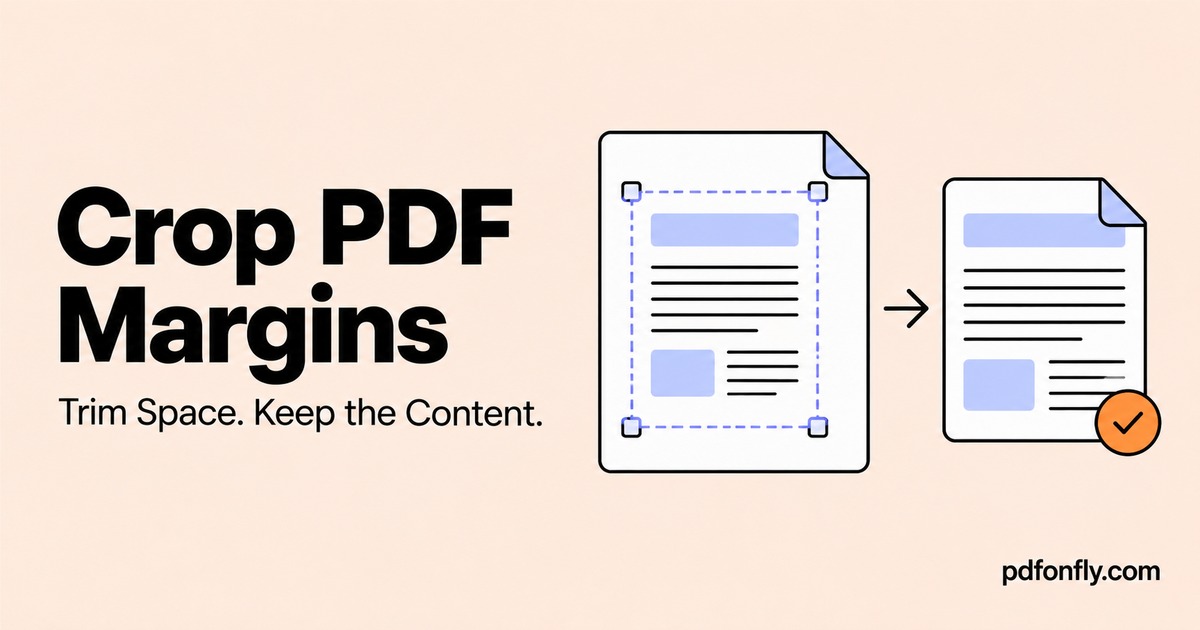
A PDF with broad empty borders can be uncomfortable to read on a phone. Cropping can bring the page content closer to the edge of the viewing area, so you spend less time zooming and panning.
The important question is how much space is empty across the whole document. A margin that is blank on the first page may contain a page number, handwritten note, or diagram label later.
Decide whether cropping is the right fix
Use Crop PDF when the problem is excess space around content. If the text inside a table is too small because the source spreadsheet was forced onto one page, correct the spreadsheet instead. Cropping the border will not change the table's internal layout.
If the PDF contains pages with very different sizes or orientations, inspect those groups separately. PDFonFly applies the same crop margins throughout a document, so a conservative crop is safer than a tight fit based on only one page.
Crop the visible page area
- Open Crop PDF and select your PDF.
- Wait for the page preview.
- Select the area you want to keep. Leave a small buffer around all text and images.
- Use Reset selection if you need to start again.
- Select Crop PDF and download the result.
- Open the downloaded PDF and inspect the entire document.
Keep the original file so you can retry with wider margins. Start with a small trim; an aggressive first crop often creates more work.
Check more than the central paragraphs
Look along all four edges. The items easiest to miss are often outside the main text block:
- Running headers and page numbers.
- Footnotes or references near the bottom.
- Labels extending beyond a chart.
- Stamps, signatures, or handwritten annotations.
- A landscape page inside a portrait report.
Imagine a report whose text begins 25 mm from the left edge on most pages. One diagram has a label farther left. Cropping to the paragraph boundary would hide that label, even though the text pages look cleaner.
Use the widest content area you need to retain, rather than the narrowest area that looks attractive on the cover.
Handle mixed layouts without losing information
If one crop cannot suit all pages, use Split PDF to make groups that share a layout. Crop each group conservatively, inspect it, and then merge the PDFs in their original sequence.
That takes an extra step, but it avoids choosing between a large border on one page and missing content on another. Check the final page count and section order after recombining the files.
Cropping is different from redaction
Do not use cropping to permanently remove a name, address, or other confidential material. Cropping can change what is visible while leaving content in the PDF. A dedicated redaction process is needed when information must be removed from the distributed file.
Adobe's cropping guidance also explains why a crop can hide information rather than discard it. Treat the crop as a layout change, not a privacy control.
Common questions
Will cropping make the file much smaller?
Do not count on it. A narrower visible page can still contain the same underlying images and objects. Use Compress PDF for a file-size problem, and compare the result for readability.
Does cropping enlarge the original text?
It removes excess visible page area. A viewer may then display the remaining area at a larger size when fitting it to the screen. It does not rebuild the text or add detail to a blurry scan.
Can I restore content if I crop too far?
Return to the original PDF and create another copy with more generous margins. Keeping the source is more reliable than depending on an editor to reverse the crop.
Should I crop before adding page numbers?
Usually, finish page layout first and add numbers afterward. Then place the numbers within the new page area. Our PDF numbering guide explains how to check placement across a combined document.