

How to Convert a Markdown README to PDF with Tables and Code
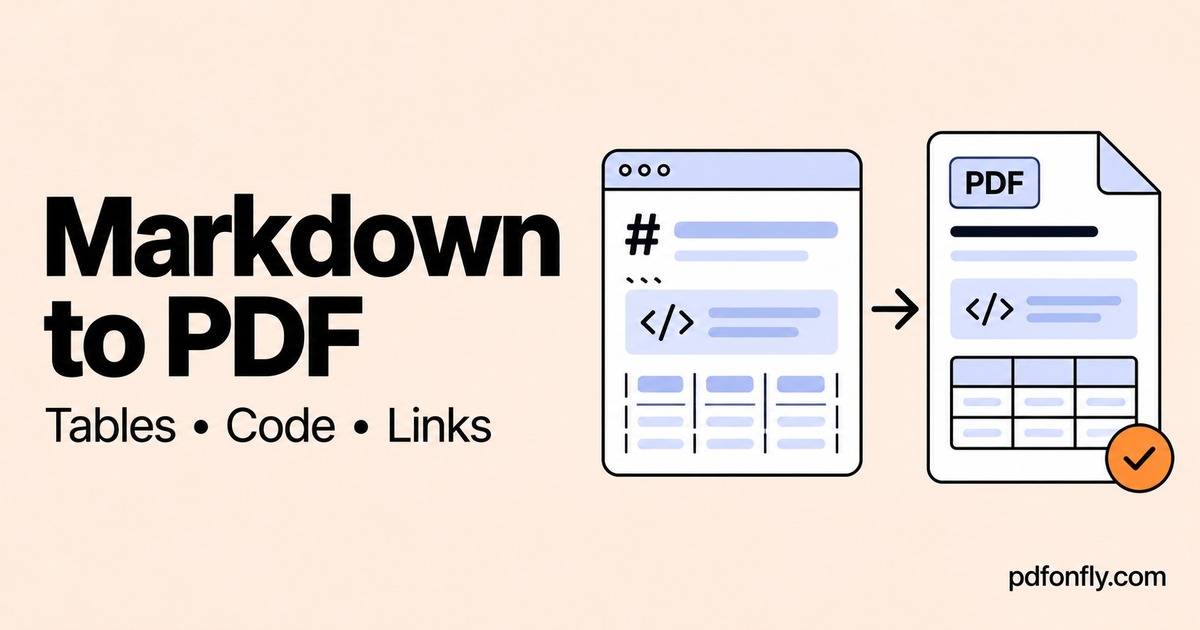
A README is useful in a repository, but sometimes you need a document you can attach to a handover or share with someone who does not use GitHub. A PDF can provide that reading copy while the Markdown remains your editable source.
The main problems are usually small: a table becomes too wide, a command runs beyond the margin, or a relative link no longer points to anything useful. Prepare those details before exporting.
Start with a copy of the README
Save a separate copy of your .md file for the handover. Add a short version note or date so the reader knows which release it describes. Remove temporary notes and instructions that only make sense to maintainers.
If the README depends on other files, decide which information the PDF must contain and which can remain behind a link. A standalone installation guide should not require the reader to discover a missing configuration example.
Import Markdown and inspect the preview
- Open Markdown to PDF.
- Use Load File (.md, .txt) to import your README, or paste the Markdown.
- Check the rendered headings, lists, tables, code blocks, and links in the editor.
- Choose a page size, orientation, and margins suitable for the content.
- Select Create PDF, then download and inspect the file.
This workflow sends the content to the conversion service. Use sample or public documentation when testing, and use an approved local route for material that cannot be uploaded.
Make tables narrow enough to read
For a simple configuration table, keep the field names and descriptions concise:
| Setting | Purpose |
| --- | --- |
| PORT | Port used by the application |
| LOG_LEVEL | Amount of diagnostic detail |
The header separator makes this a table rather than a set of lines containing pipes. GitHub's Markdown table documentation describes the syntax.
A table with many long descriptions can be difficult to fit on a portrait page. Split it into smaller tables or put detailed explanations under separate headings. Landscape orientation can help, but shrinking a wide table until the writing is tiny is rarely a useful result.
Check code as text, not just as a picture
Put commands in fenced code blocks so they remain distinct from the explanation:
Run the application:

```bash
npm install
npm run build
```
Inspect long commands in the PDF. If a line crosses the page edge, use a wider page or explain the command in smaller pieces. Do not insert arbitrary line breaks that would change what the command does. If you show a shell continuation character, make sure it is correct for the shell you name.
Copy a command from the downloaded PDF into a plain-text editor and compare it with the source. Do not run it just to test copying. Watch for missing characters or unexpected line breaks.
Replace links that depend on the repository
A link such as docs/setup.md makes sense inside a repository. In a PDF saved to a reader's Downloads folder, it may not.
Use full URLs for pages the recipient should visit. For a release-specific handover, consider linking to documentation for the relevant release rather than a moving development branch. If the destination is private, confirm that the reader has access.
Local image paths need the same attention. If an imported image is absent from the preview, do not assume it will appear in the PDF. Use a reachable image source that is appropriate to share, or remove the dependency from the handover copy.
Finish with a reader's check
Open the downloaded PDF and follow the installation or setup instructions in order. Check that no heading is stranded at the bottom of a page, table rows remain understandable, and the smallest code text is readable.
Test important links. Search for a distinctive heading and try copying a line of code. For a longer guide, include a short section list near the beginning so readers can find the relevant part.
Common questions
Will GitHub-specific features look exactly the same?
Do not assume that every renderer supports the same extensions. Preview task lists, badges, diagrams, embedded HTML, and other special elements. Replace anything essential that does not render with plain text or an appropriate static image.
Should the PDF replace the README?
Keep the Markdown as the maintained source. Regenerate the PDF when the relevant instructions change, and give the exported copy a versioned filename.
How is this different from saving AI text as PDF?
This guide focuses on repository documents, code, and relative paths. For pasted assistant output, see saving AI text without losing Markdown formatting.