

How to Convert Word, Excel, PowerPoint, and OpenOffice Files to PDF
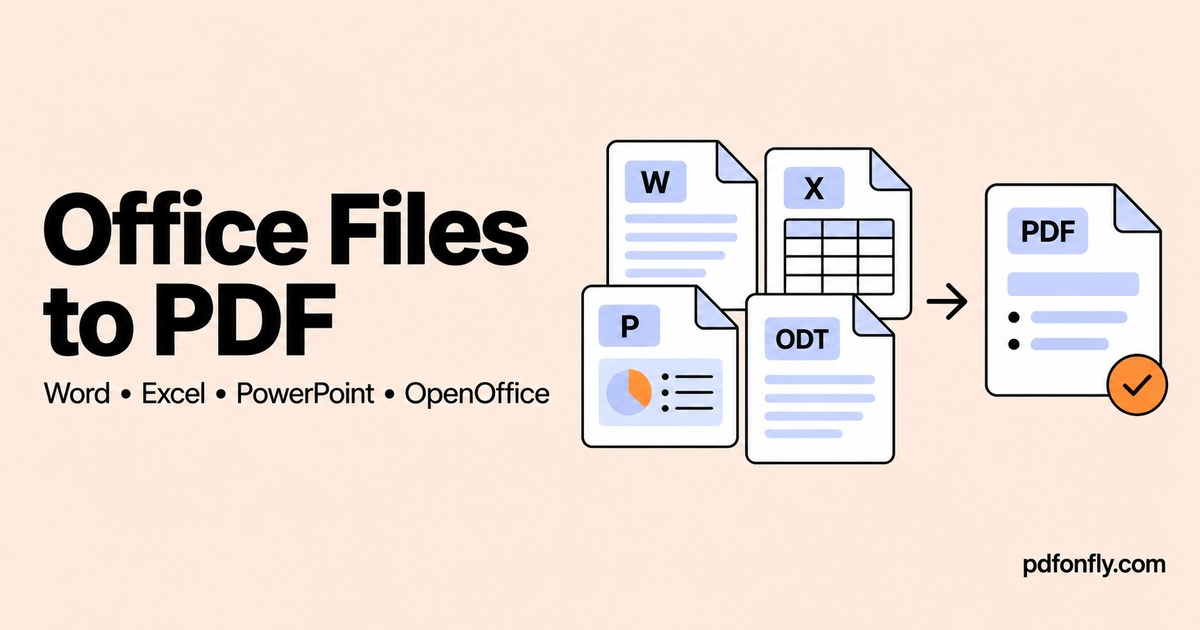
You have a report in Word, a budget in Excel, and a presentation in PowerPoint. The person receiving them only needs to read the finished work. Sending PDFs gives them a consistent page layout without asking them to open each original application.
The conversion itself is straightforward. The part that deserves attention is what becomes a page: Word already has pages, a spreadsheet can extend far beyond a sheet of paper, and a presentation may contain notes or hidden slides you did not intend to share.
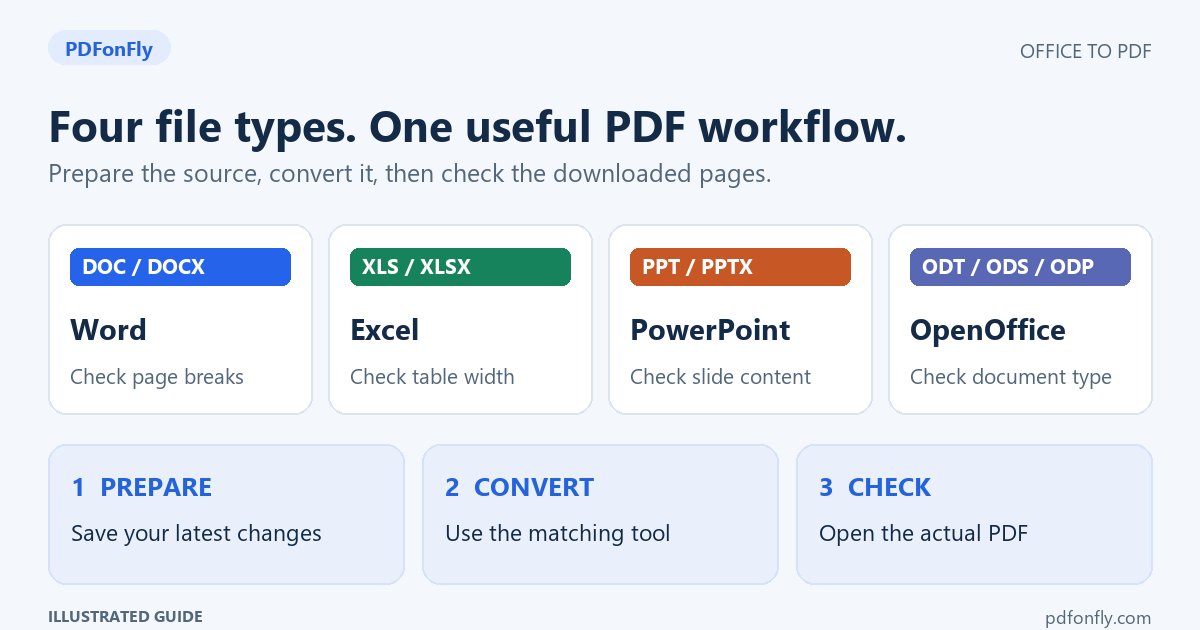
Here is how to prepare each file and choose the right route.
Choose a converter for your file
Look at the file extension, the letters after the last dot in its name. A file called budget.xlsx needs the Excel converter even if someone emailed it to you as an attachment called “the report.”
| Your file | Common extensions | Converter | Check first |
|---|---|---|---|
| Word document | .doc, .docx | Word to PDF | Fonts, page breaks, and tables |
| Excel workbook | .xls, .xlsx | Excel to PDF | Print area, width, and worksheet contents |
| PowerPoint presentation | .ppt, .pptx | PowerPoint to PDF | Slides, notes, and anything intended to animate |
| OpenOffice document | .odt, .ods, .odp | OpenOffice to PDF | Writer pages, Calc print ranges, or Impress slides |
Renaming a file from .docx to .pdf does not convert it. You need a converter or the original application's PDF export command.
Convert an Office file online
If you have the file but do not have its original application installed, use the relevant PDFonFly converter in your browser.
- Open the converter from the table above.
- Select Choose file, then select your document.
- Wait for the upload to complete and check the filename in the workspace.
- Select Finish to generate the PDF.
- Download the result and open it before sending it onward.
The tools accept uploads from your device and process them on a server. Check the allowance and file-size limit shown on the page. If a document must stay on your computer, use the original application's local PDF export instead.
Keep the editable original. A PDF is the copy you distribute; the original is where you should make the next revision.
Word to PDF: check the document's last page
For a letter, CV, or report, start with Word to PDF. Before conversion, save your latest changes and check the layout in Word if it is available.
After conversion, compare the first and last pages with the original. A short paragraph unexpectedly spilling onto a new page can turn a two-page CV into three pages. Also check tables near the right margin and images placed beside text.
If text shifts, avoid fixing it with extra spaces and repeated blank lines. Those fixes are fragile. Adjust the source document's paragraph spacing, table widths, or page breaks instead. Our Word-to-PDF formatting guide explains the common causes.
Excel to PDF: decide what should fit on a page
For spreadsheets, use Excel to PDF. Think about the reader before deciding on scaling. A ten-column invoice might work on one page; a year of transaction rows usually needs several.
In Excel desktop, check the print area and preview. For a wide table, landscape orientation and fitting the columns to one page of width can help. Let long tables continue onto further pages rather than shrinking all their rows until the text is unreadable.
Then inspect the converted PDF for isolated columns, missing totals, and pages containing very little information. Start by checking the saved print area and the scaling settings in the original workbook.
PowerPoint to PDF: choose slides or a handout
Use PowerPoint to PDF when you need a readable copy of a deck. Keep the presentation file for delivering the slideshow: a PDF does not reproduce the experience of animations, transitions, or embedded video.
Decide whether the recipient needs the slides alone or a handout with notes. For notes pages, multiple slides per page, or explicit control over hidden slides, use PowerPoint's export or print options. Check the output rather than assuming every conversion method includes the same material.
Check small text, chart labels, and links in the output. A deck that works well during a talk may need extra explanation when someone reads it on their own.
OpenOffice to PDF: match the document type
The OpenOffice converter accepts ODT, ODS, and ODP files. These correspond to text documents, spreadsheets, and presentations.
An ODS budget needs the same attention to printable width as an Excel workbook. An ODP presentation needs the same slide checks as a PowerPoint deck. An ODT letter needs a check of fonts and page breaks.
If OpenOffice or LibreOffice is already installed, its PDF export is another useful route, especially when you need to choose particular pages. Use the application's export dialog to review the page range before saving.
Sending several documents together
Suppose a project pack contains a Word proposal, an Excel cost summary, and a slide deck. Convert and inspect each document first. Then merge the PDFs in the order the recipient should read them.
This makes an incorrect section easier to replace. Check the page order and total page count after merging. If the recipient requests separate attachments, keep the PDFs separate instead.
A final check before sharing
- Open the downloaded file, not just the original document.
- Check the beginning, end, and any page with a wide table or chart.
- Search for a distinctive phrase and try selecting a sentence.
- Check links that the recipient will need.
- Confirm that the filename identifies the document and version.
For a report, budget, or presentation, a minute spent checking the PDF is often more useful than repeating the conversion with identical settings.
Questions people ask
Do I need Microsoft Office to use an online converter?
No. You need the supported source file and a browser. You may still need an editor if the source layout needs correcting.
Will a PDF keep Excel formulas or PowerPoint animations working?
A PDF is a page-based version of the document. Keep the workbook for calculations and the presentation for slideshow behavior. Distribute the PDF when the recipient needs to read the results.
Can I convert PDF back to Word with these tools?
These links cover conversion to PDF. Converting a PDF into an editable Office file is a different task.
Which tool should I start with?
Choose the converter that matches your file extension, or open the PDF converter for supported mixed-file workflows.