

OpenOffice and LibreOffice to PDF: A Guide to ODT, ODS, and ODP
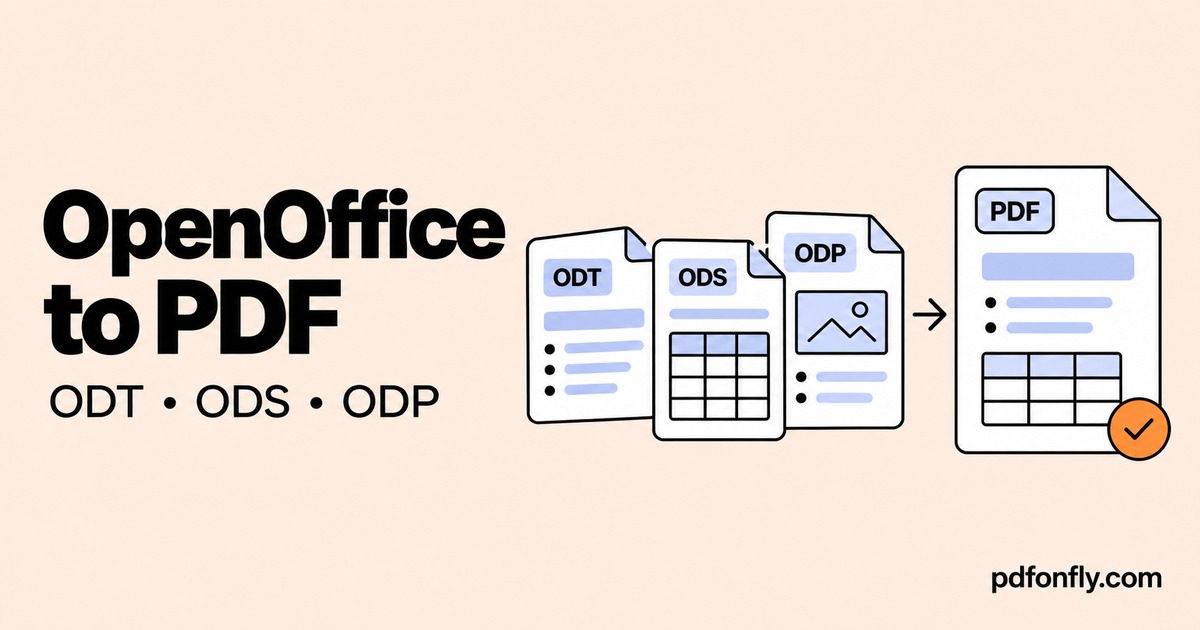
Someone sends you an ODT file, but you need a PDF for an application form. Or you have an ODS budget that the recipient cannot open. You can convert these files without first turning them into Microsoft Office documents.
OpenOffice and LibreOffice both work with OpenDocument files. If one of those applications is installed, its PDF export provides useful control over the result. If you only have the file, an online converter is another route.
Identify the file before converting it
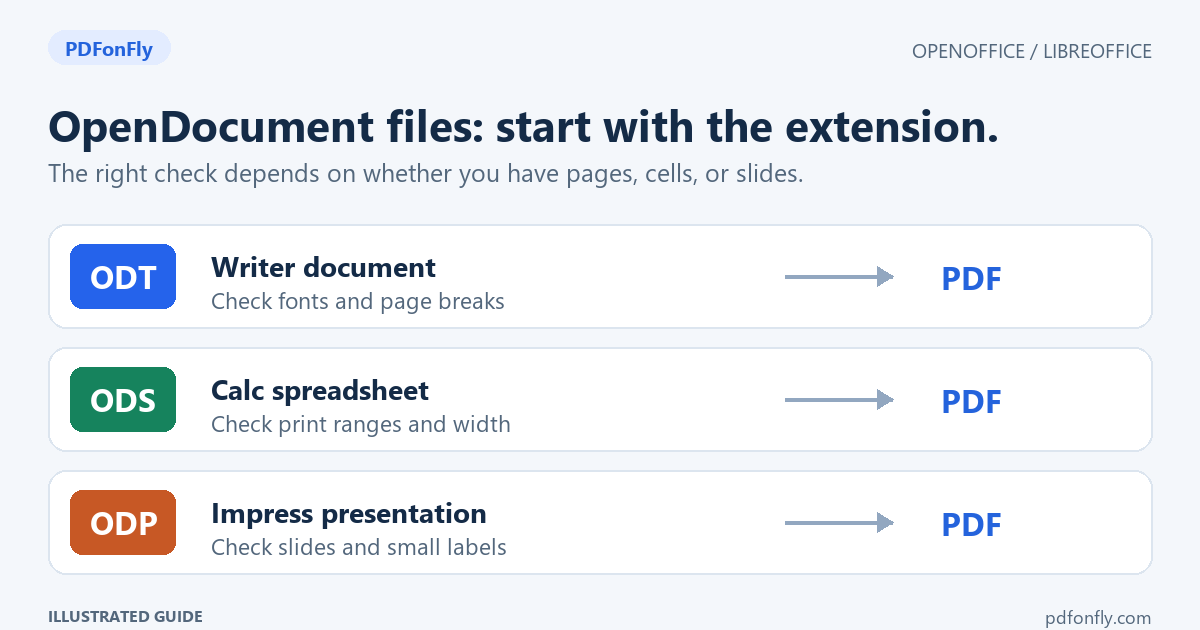
| Extension | Document type | What to inspect |
|---|---|---|
| .odt | Writer text document | Page breaks, fonts, tables, and images |
| .ods | Calc spreadsheet | Print ranges, table width, and totals |
| .odp | Impress presentation | Slide content, small labels, and the intended reading order |
The extension tells you more than the filename. A file called annual-report.ods is a spreadsheet, so it needs a spreadsheet layout check even though its name says “report.”
Convert an OpenOffice file to PDF online
PDFonFly's OpenOffice-to-PDF converter accepts ODT, ODS, and ODP files.
- Open the tool and select Choose file.
- Select the OpenDocument file from your device.
- Wait for the upload to finish.
- Select Finish and download the PDF.
- Open the PDF and compare it with the content you expected.
You do not need OpenOffice installed for this route. Check the allowance and maximum file size displayed on the tool. For a document that must remain on your device, use a local application export instead.
If the file needs editing, return to its source application. A converter is not a replacement for correcting a missing heading or an incorrect formula result.
Export from Apache OpenOffice
Open the document and choose File > Export as PDF. Review the available options, export the file, and open it in a PDF viewer.
OpenOffice also has an Export Directly as PDF toolbar shortcut. That shortcut uses the default PDF settings, so the menu route is preferable when you need to choose a page range or image settings.
For a long document, decide whether you need every page, a range, or a selection. Check the exported result, particularly if the document includes comments or notes. Apache's PDF export guide explains these controls. It describes an older interface, so the appearance of your installed version may differ.
Export from LibreOffice
In LibreOffice, choose File > Export As > Export as PDF. Review the General options and the export range before saving. The export dialog offers more control than the quick-export toolbar button.
For a Calc file, pay attention to saved print ranges: LibreOffice's “All” export uses defined print ranges when they exist. Open the PDF afterward to confirm that it contains the intended table and totals.
LibreOffice also offers Hybrid PDF, which embeds an editable ODF document inside the PDF. Leave that option off when you want to distribute a regular reading copy without including the editable source. The LibreOffice export documentation explains the available settings.
Check the result according to the document type
ODT: check the pages around images and tables
An ODT letter may require only a quick page-count check. A long report deserves a closer look at headings near page boundaries, wrapped images, and tables extending toward the margins.
If a line of text moves, inspect the source formatting and font choice. Replacing a missing font can change how much fits on a page. Fix the source and export again rather than adding blank lines to the PDF.
ODS: check the rightmost column and final total
A spreadsheet can extend beyond printable page width. Open its print preview in Calc and inspect the print range, orientation, and scaling options. Aim for legible text; a short form and a long transaction report should not necessarily use the same page count.
After conversion, look for columns printed in isolation or totals excluded from the output. Our spreadsheet PDF layout guide explains the layout decisions using Excel; Calc's controls have different names and locations.
ODP: check whether the slides explain themselves
A PDF reader will not see your live delivery. Make sure the static slide content communicates the point without depending on an animation or spoken explanation. Inspect chart labels and links, and keep the ODP for editing or presenting.
The presentation-to-PDF guide discusses the difference between slide pages, notes, and handouts. Its menu instructions are for PowerPoint, but the decision about what the reader needs applies to Impress too.
Common questions
Do I have to convert ODT to Word before making a PDF?
No. Convert the ODT directly with the OpenOffice tool, or export it from Writer. An intermediate format adds another layout change to check.
Can I just change .odt to .pdf in the filename?
No. Renaming changes the filename, not the document format. Use conversion or PDF export.
Is PDF the right file for someone who needs to edit my document?
Keep and share the ODT, ODS, or ODP when editing is the purpose. A PDF is useful for reading, printing, or submitting a finished version. Give each copy a clear filename.
What if I also have Word and Excel files?
Our Office-to-PDF guide links to the appropriate converter for each format and explains how to assemble a multi-document PDF pack.