

Excel to PDF Without Cutting Off Columns: A Practical Layout Guide
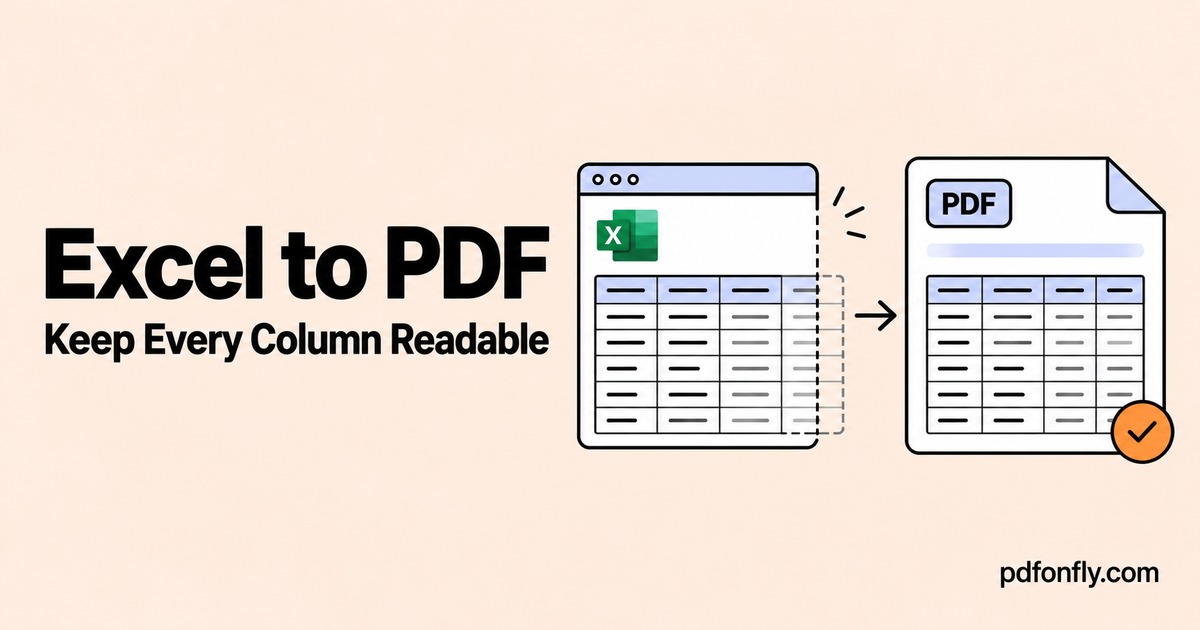
An Excel sheet can look fine on screen and become awkward in a PDF. The final two columns may land on a separate page, a total may be missing, or the entire table may shrink until it is difficult to read.
Start by checking the printable layout in the workbook. Converting the same file repeatedly will not resolve a print area that excludes your totals.
If your workbook is already prepared, open Excel to PDF, choose the XLS or XLSX file, wait for the upload, select Finish, and download the result. Otherwise, work through the checks below first.
The useful distinction: one page wide or one page total?
These settings solve different problems.
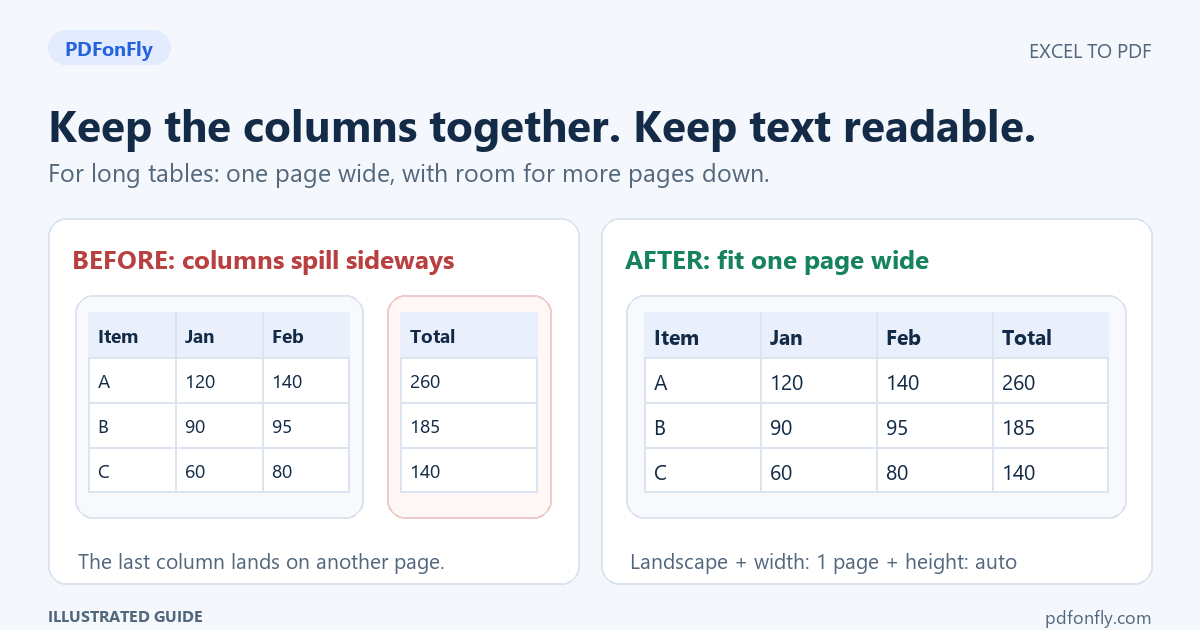
One page wide keeps a table's columns together while allowing rows to continue onto more pages. This is a useful starting point for a long report.
One page wide by one page tall compresses the selected content onto a single page. That may work for a short invoice, but a large transaction list will become tiny.
Imagine a report with January through December in columns and 150 products in rows. A readable result might span several pages vertically. Forcing those 150 rows onto one page makes the document harder to use, even if every cell technically fits.
1. Include the cells the reader actually needs
Open a copy of the workbook in Excel desktop. Select the table, its headings, and its final totals. Then choose Page Layout > Print Area > Set Print Area.
Open File > Print and inspect the preview. Check that the first heading and final total are included. If an older print area is cutting off new data, use Page Layout > Print Area > Clear Print Area, then set the intended range again.
Excel saves print areas with the workbook. Several separate print areas can produce separate pages, so check for that if the output seems unnecessarily fragmented. Microsoft explains how print areas work.
2. Give wide tables enough horizontal space
In Excel desktop, try Page Layout > Orientation > Landscape for a wide report. Choose the paper size the recipient expects, such as A4 or Letter.
Then review the columns themselves. A wide description column may contain only short product names, while a narrow heading wraps onto three lines. Adjusting those widths can produce a clearer page before any scaling is applied.
Do not remove meaningful columns just to make the preview look tidier. If the report still needs more space, consider a larger paper size for screen reading or divide it into clearly labeled sections.
3. Fit the width and let the rows continue
In the Windows desktop version of Excel, open Page Layout and find Scale to Fit:
- Set Width to 1 page.
- Leave Height as Automatic for a long table.
- Open print preview and inspect the resulting text size.
For a short form, you can try setting Height to one page too. If the text becomes hard to read, allow additional pages instead. Menu names and placement differ between desktop, Mac, and web versions; these instructions describe the Windows desktop controls.
When fit-to-page scaling is active, Excel can ignore manual page breaks. Choose either a scaling approach or deliberate page-break control, then judge the preview. See Microsoft's worksheet scaling guidance.
4. Keep headings visible on later pages
A second page containing rows of numbers without column labels makes the reader flip back and forth. In Excel desktop, use Page Layout > Print Titles and set Rows to repeat at top to the header row. For example, $1:$1 repeats the first row.
This is different from Freeze Panes, which helps while scrolling on screen. Check the PDF itself to confirm the headings appear where expected. Microsoft documents repeating column headers on printed pages.
5. Save, convert, and inspect the actual PDF
Save the workbook after changing its layout. Then upload it to PDFonFly's Excel-to-PDF converter, select Finish after the upload, and download the PDF.
Check the first page, one middle page, and the final page. Read the smallest text at normal viewing size. In particular, check the last column and the final total; both are easy to miss when you inspect only the first page.
A converter can interpret a workbook differently from Excel's own export. If a particular workbook still looks wrong, compare it with a PDF saved directly from Excel. That comparison helps you decide whether to change the workbook or use its native export for this document.
Troubleshooting by symptom
| What you see | What to inspect next |
|---|---|
| The last columns appear on another page | Orientation, column widths, and fit-to-width scaling |
| All text is very small | Whether both width and height are forced to one page |
| New rows or totals are missing | Whether the saved print area still covers the full table |
| Unexpected extra pages | Separate print areas and content beyond the intended table |
| Later pages are hard to follow | Repeated header rows and sensible section boundaries |
| Numbers show as hashes | Whether the source columns are wide enough to display them |
If a workbook contains several sheets, inspect each sheet's layout. Preparing the first worksheet does not prepare the others. For a document that must include only a particular sheet, create a separate copy containing the intended material and verify its formulas and displayed values before conversion.
A short example: preparing a monthly cost report
Suppose your report has a title, twelve monthly columns, and a total column. Start by selecting that whole report, including the total. Use landscape orientation and one page of width. Keep the height automatic.
Preview the result. If the table is still too small, shorten unnecessarily long headings or adjust unused column space. If that is insufficient, split the report into two clearly labeled periods with a total summary. The reader needs a usable report more than a particular page count.
Common questions
Can I convert XLSX to PDF without Excel installed?
Yes. PDFonFly accepts XLS and XLSX uploads through the browser. Layout corrections may require an editor. If someone else created the workbook, ask them for a print-ready copy when you cannot change it yourself.
Does converting Excel to PDF preserve working formulas?
The PDF is for reading the displayed results. Keep the workbook if the recipient needs to change inputs, inspect formulas, or recalculate the report. Refresh the source data and save the latest results before making a distribution copy.
Can compression fix columns that were cut off?
Compression changes file size; it does not rebuild the spreadsheet's page layout. Fix the workbook and convert it again.
What should I do after the layout is correct?
If the PDF is too large for the destination, follow our PDF compression guide. For a report that also includes a Word introduction or a slide summary, see the Office-to-PDF guide.